October 2026 · 6 min read
10 Ways to Make Psychedelic Visuals for Your Song
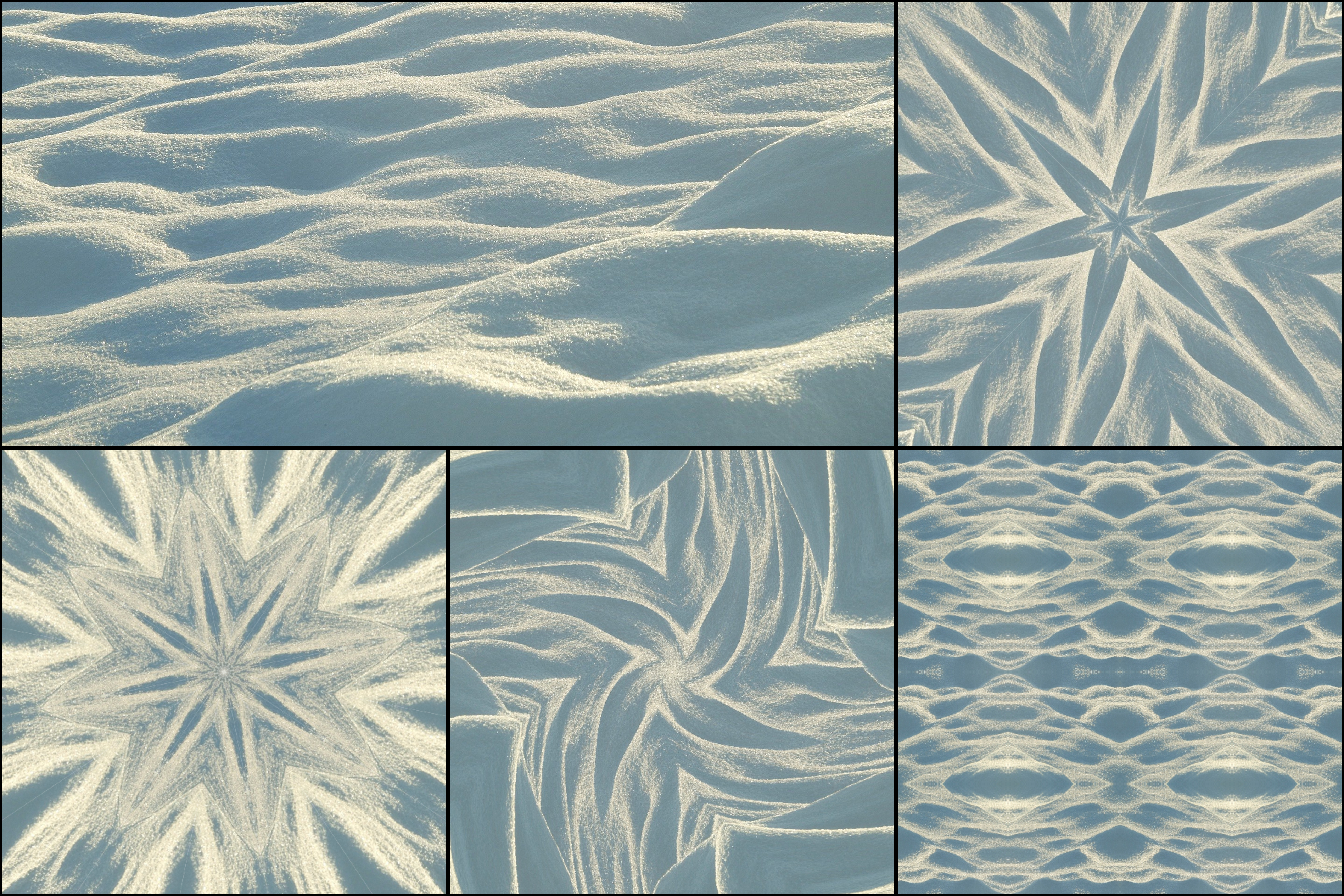
New single coming out and no budget for a music video? You are not alone. Most independent bands release music with little or no money for visuals, yet every platform now expects something moving next to your song.
Psychedelic kaleidoscope visuals are one of the easiest answers. They are hypnotic, they suit everything from shoegaze to techno, and they loop forever without getting old. Here are ten ways to make them for your music with KaleidoMaker, a kaleidoscope tool that runs in your browser.
1. Turn your cover art into a looping visualizer
Your single or album artwork is already the visual identity of the release, so start there. Upload the cover, choose the 16:9 canvas, switch to Loop, and turn on Rotate. You get a seamless animation built entirely from your artwork, which keeps the video and the release looking like one project.
2. Build a full-length YouTube visualizer from one loop
A "visualizer" video is simply moving art that plays for the length of the song. Export a loop of 4 to 8 seconds, drop it into any video editor, and repeat it on the timeline until it covers the whole track. Because each loop ends exactly where it starts, the repeats are invisible.
3. Make your loops land on the beat
A loop that lines up with your tempo feels intentional instead of random. The math is simple: at 120 BPM, a 2-second loop is exactly one bar of 4/4, a 4-second loop is two bars, and an 8-second loop is four bars. For other tempos, seconds multiplied by BPM, divided by 240, gives the number of bars. Pick the loop length that lands on a whole number of bars and every cycle will restart on the downbeat.
4. Change patterns between song sections
Use the structure of the song as the structure of the video. Try a calm Mirror pattern with a slow Pan for the verses, then cut to Fan or Spiral with Rotate when the chorus hits. Export one loop per section from the same source image and cut between them on the first beat of each section. The change of pattern does the work of a camera cut.
5. Film your band through the kaleidoscope camera
Switch to Camera mode on your phone, choose Video, and record. Point the camera at guitar strings, a drum kit, hands on a keyboard, or the singer's face, and move slowly. Real performance footage mirrored into symmetry looks like a high-budget effect, and it still feels like your band. See the kaleidoscope camera guide for more tips.
6. Use stage lights and fairy lights as your source
Lights are some of the best kaleidoscope material there is. Turn off the room lights, switch on LED strips, fairy lights, a lava lamp, or your stage lights, and record them through the camera mode. Bright points of color on a dark background turn into glowing, jewel-like patterns that suit late-night, ambient, and electronic music.
7. Make calm backgrounds for lyric videos
Lyric videos need a background that moves but does not fight the words. Choose gentle patterns, such as Mirror or Circle with a slow Pan or a small Zoom, and start from a softer, lower-contrast image so white text stays readable on top. Add the lyrics in your video editor afterwards.
8. Create projection loops for live shows
If your venue has a projector or a screen behind the stage, kaleidoscope loops make cheap and effective show visuals. Export a set of 16:9 loops in the colors of your current release, then play them on repeat during the set. Make a few different moods so you can switch between them for slow and fast songs.
9. Cut teasers for Instagram, TikTok, and Spotify
Before release day, post short pieces of the visuals with a snippet of the chorus. Square loops work well in the Instagram feed. Reels, TikTok, and Spotify Canvas use vertical video, so crop your loop to vertical in your editing app before posting. The same visuals across every platform make the release feel like an event. Our guide to kaleidoscope videos for Instagram and TikTok goes deeper.
10. Turn band photos into a visual era
Upload a band portrait, a gig photo, or a shot from the rehearsal room and run it through the same pattern and colors you used for the release. Using one look across your cover, video, teasers, and stage visuals gives the whole release a recognizable "era", the way bigger artists do. If you also draw or paint, see how to turn your artwork into kaleidoscope patterns.
A few things to know before you start
KaleidoMaker animations follow the motion you set, not the audio, so the visuals will not react to your music by themselves. Matching loop length to your tempo, as in tip 3, and cutting on the beat in your editor is what makes them feel in sync.
Still images are always free to export with no watermark, which makes them handy for cover art and posters. Videos and loops are free to export with a small watermark. For an official release, Creator Mode removes the watermark and exports in HD with a one-time purchase.
Everything you make is yours to use, including in commercially released music videos. Just make sure you have the rights to the images you start from.
Try KaleidoMaker
Create your own kaleidoscope patterns for free, no signup required.
Open KaleidoMaker →